
How to Manage Members and Roles
Last Updated: 2026-09-07 15:55:44
Business Account administrators can manage members, invitations, and roles from Account Settings > User Settings.This guide explains how to view members, update roles, remove members, manage invitations, and view role details.
Go to Account Settings > User Settings to view all members who have joined your Business Account.
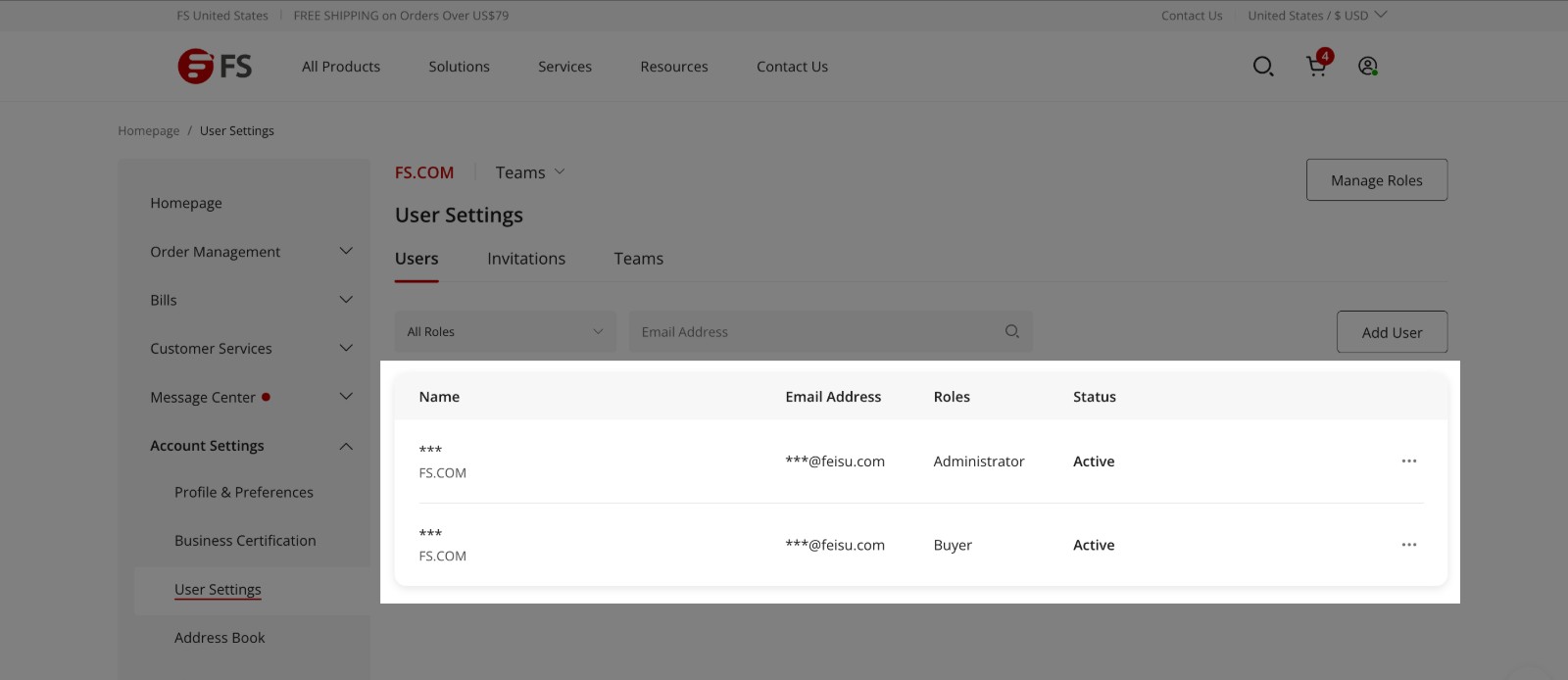
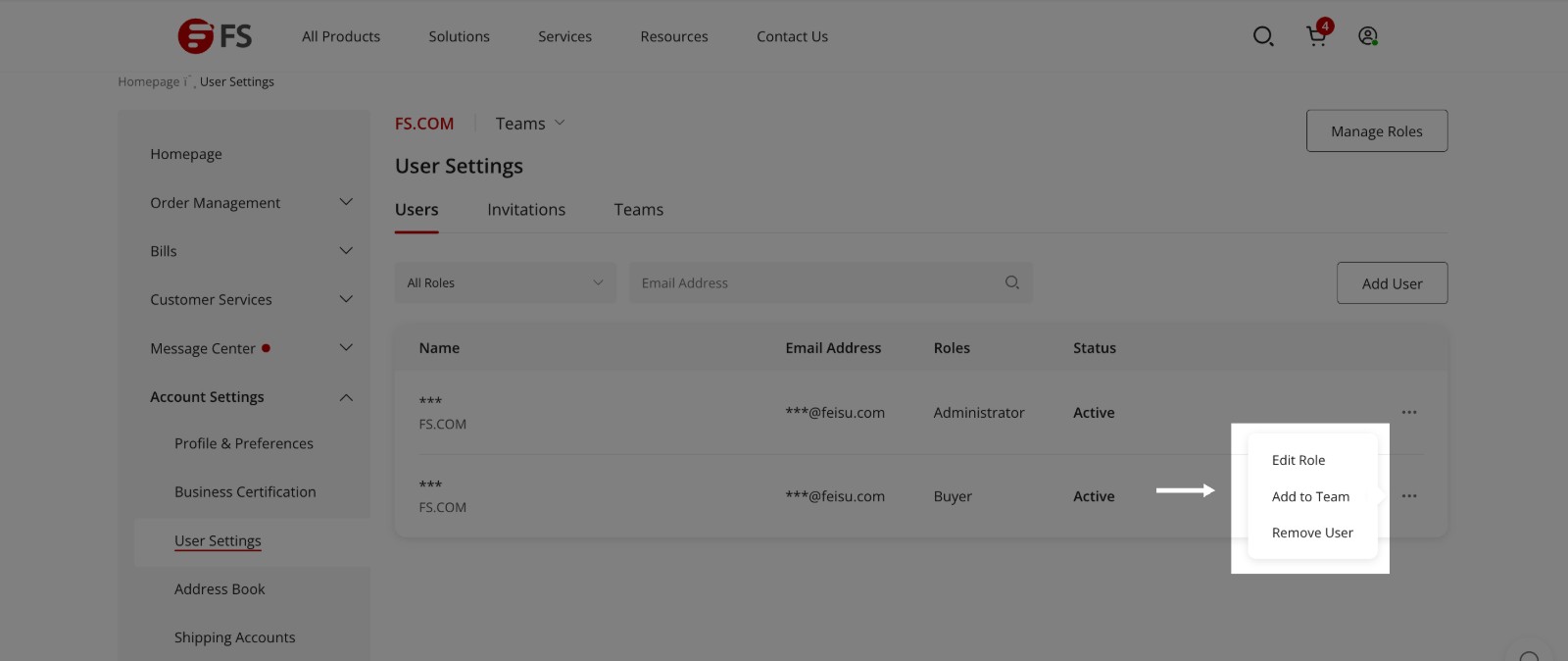
Step 1. Open the Member Actions Menu
In the member list, find the user you want to update, click ..., and select Edit Role.
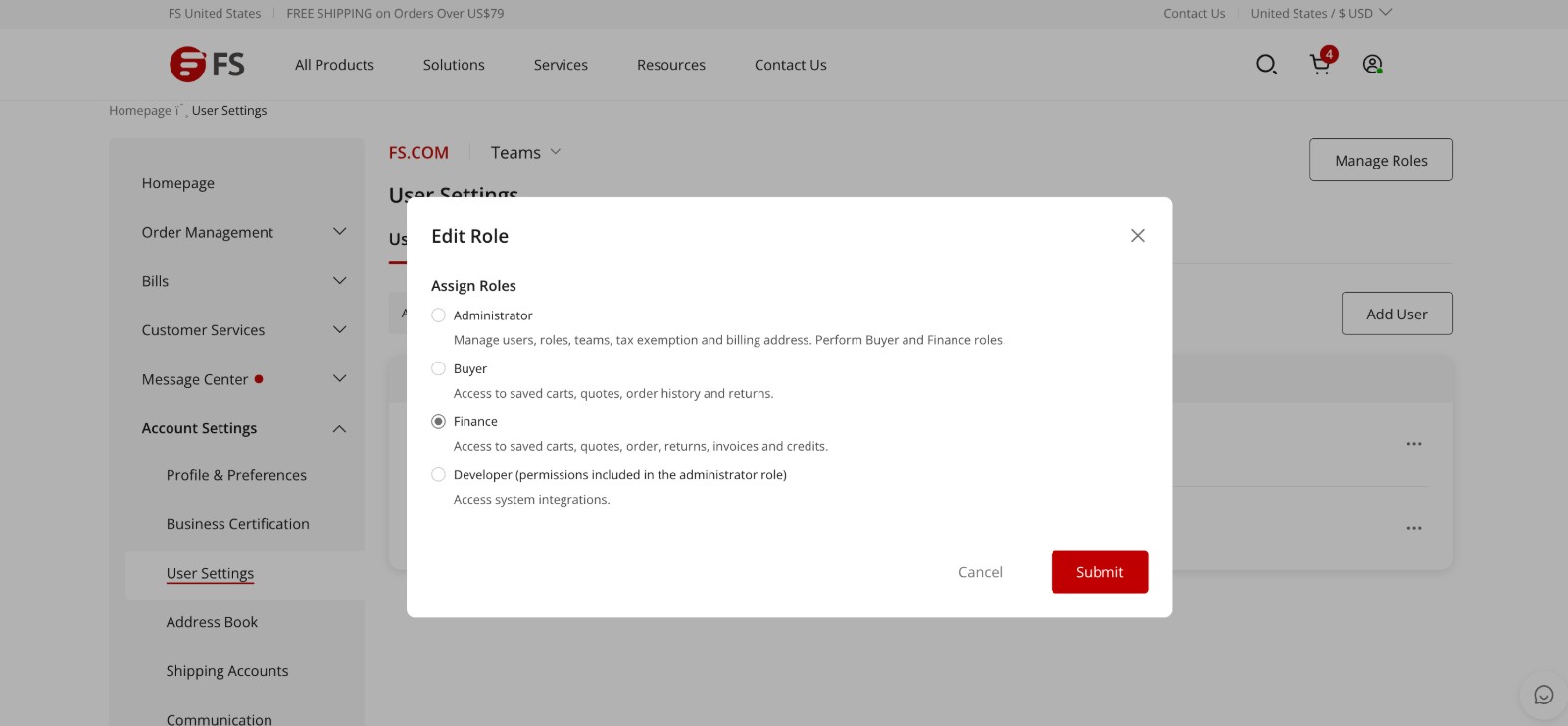
Step 2. Assign a New Role
Select the appropriate role and click Submit to save the changes. The updated permissions take effect immediately.
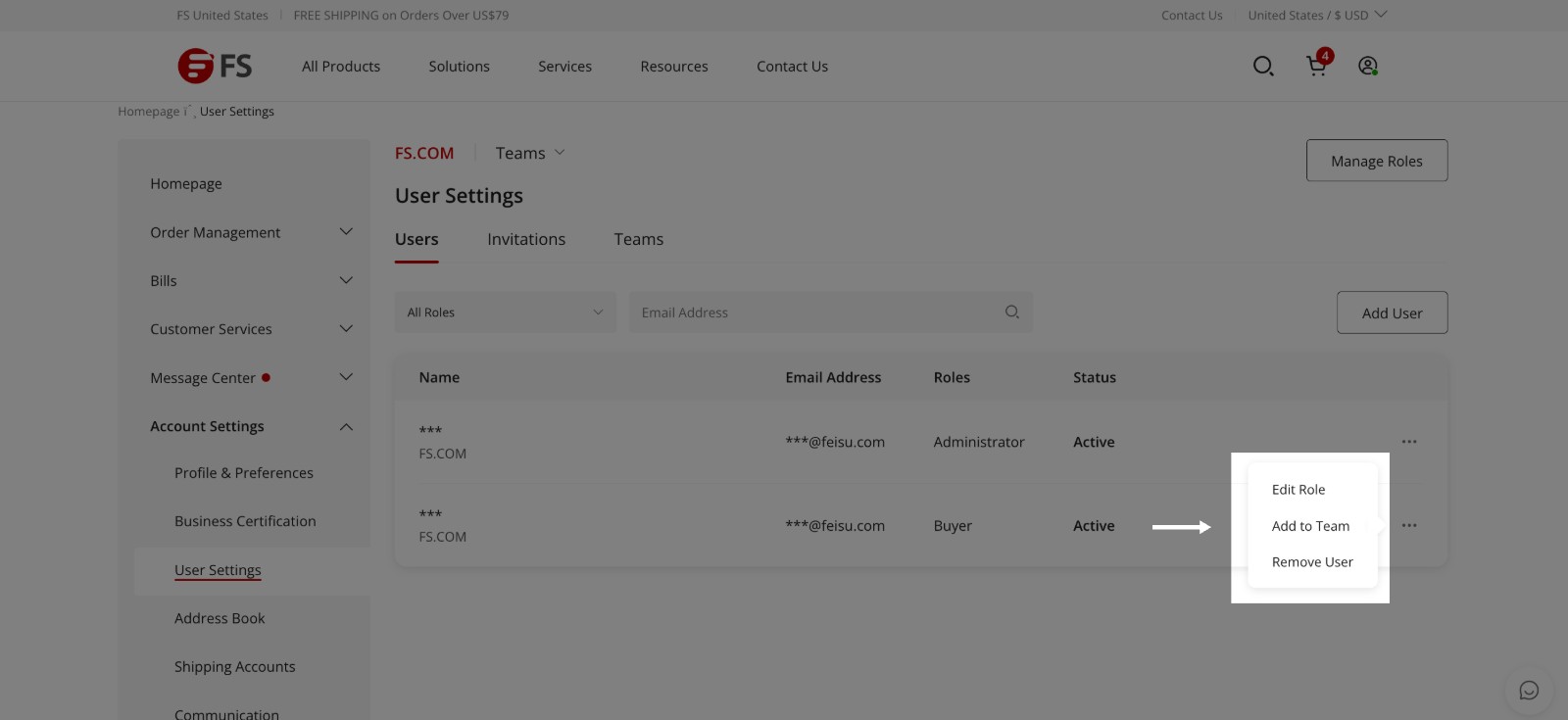
Before You Remove a Member
Remove the Member
In the member list, click "..." and select Remove User. Confirm the action to remove the member from the Business Account.
Administrators can monitor and manage member invitaticons from the Invitations page.
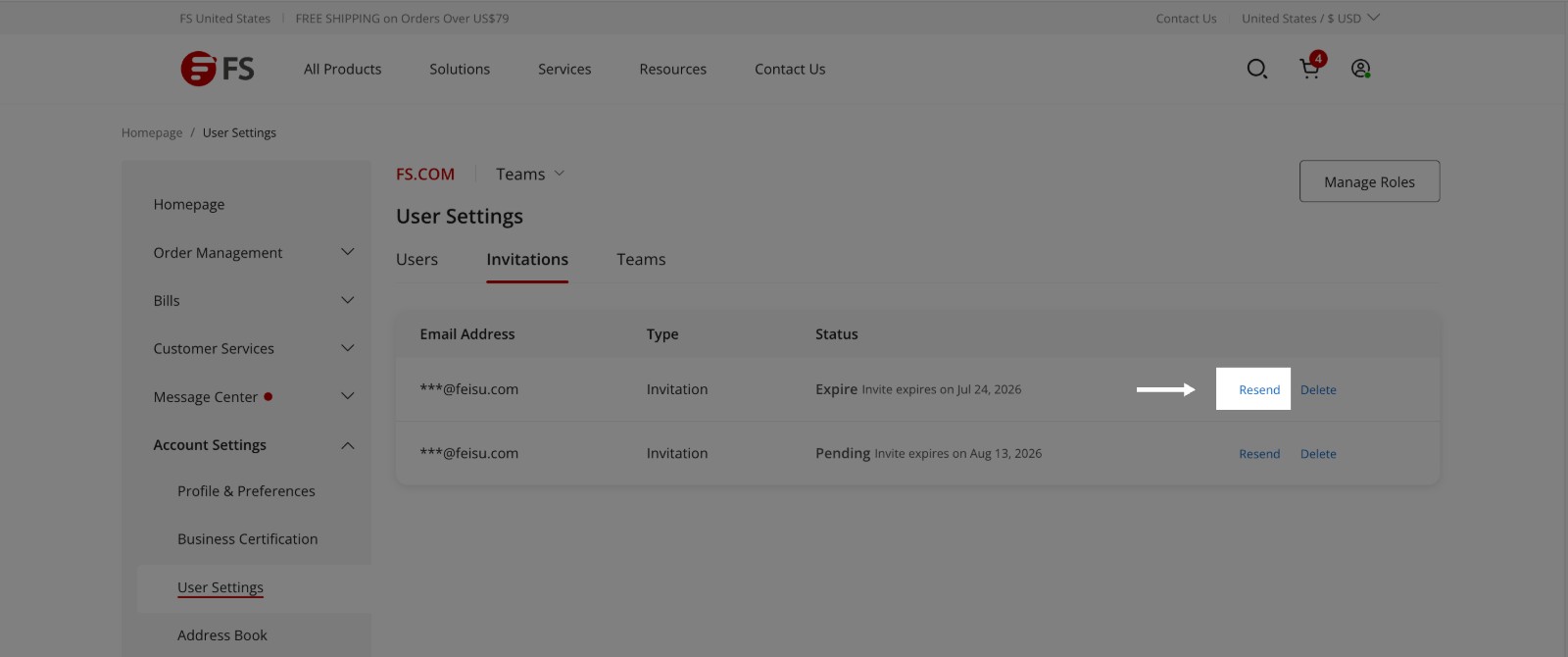
Resend an Invitation
If an invitation has expired, you can send it again.
The invitation status will return to Pending after it is sent again.
View roles
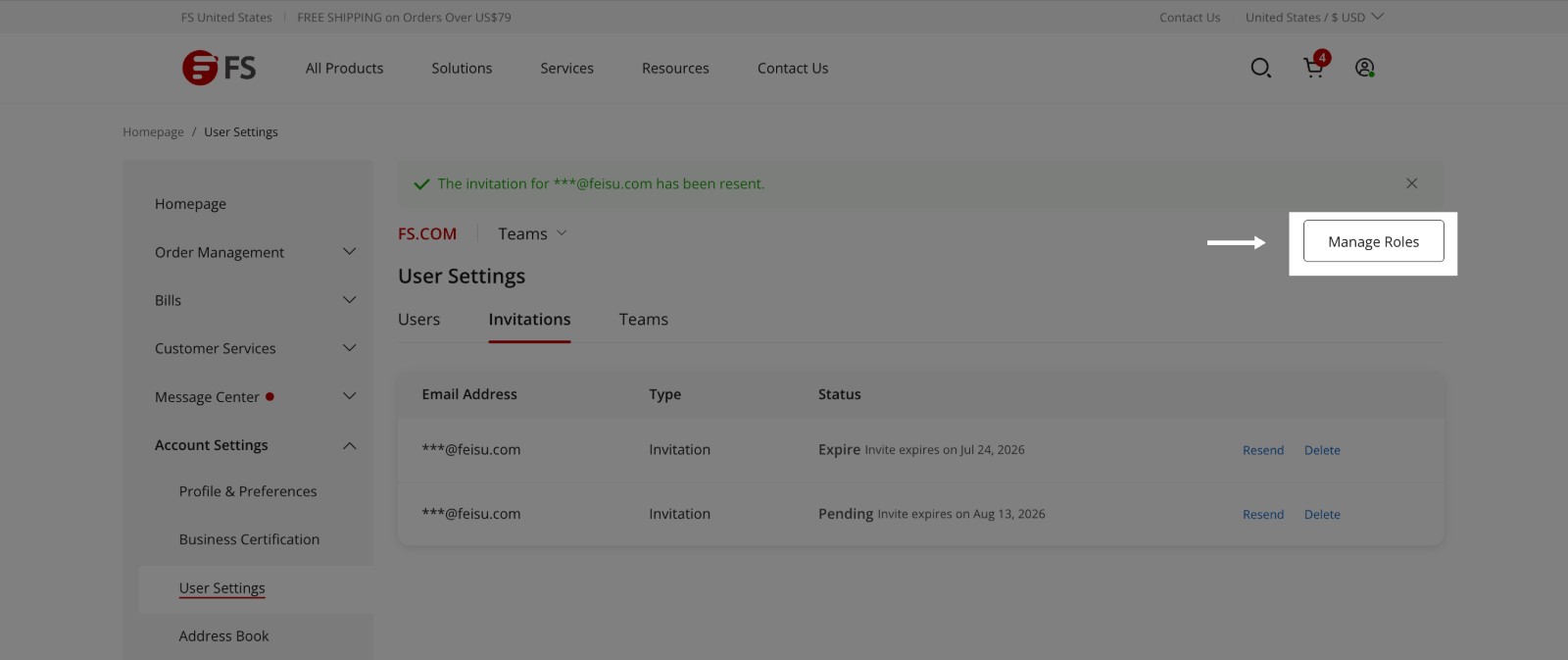
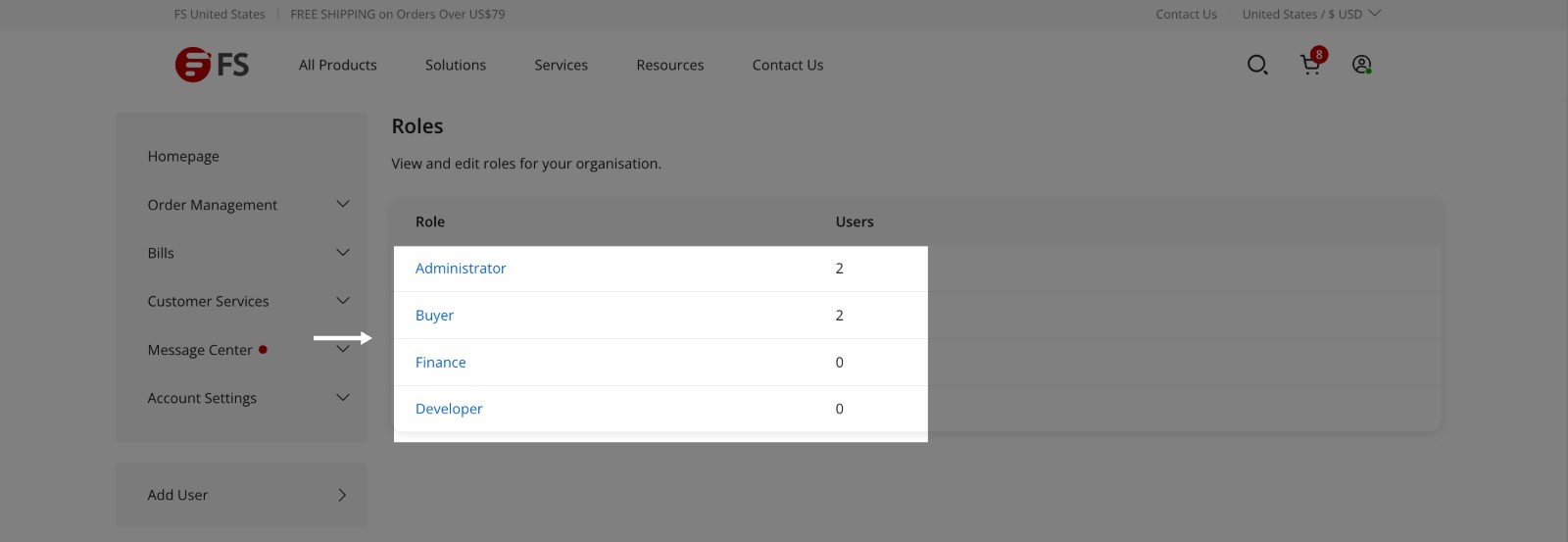
To view available roles and their permissions:
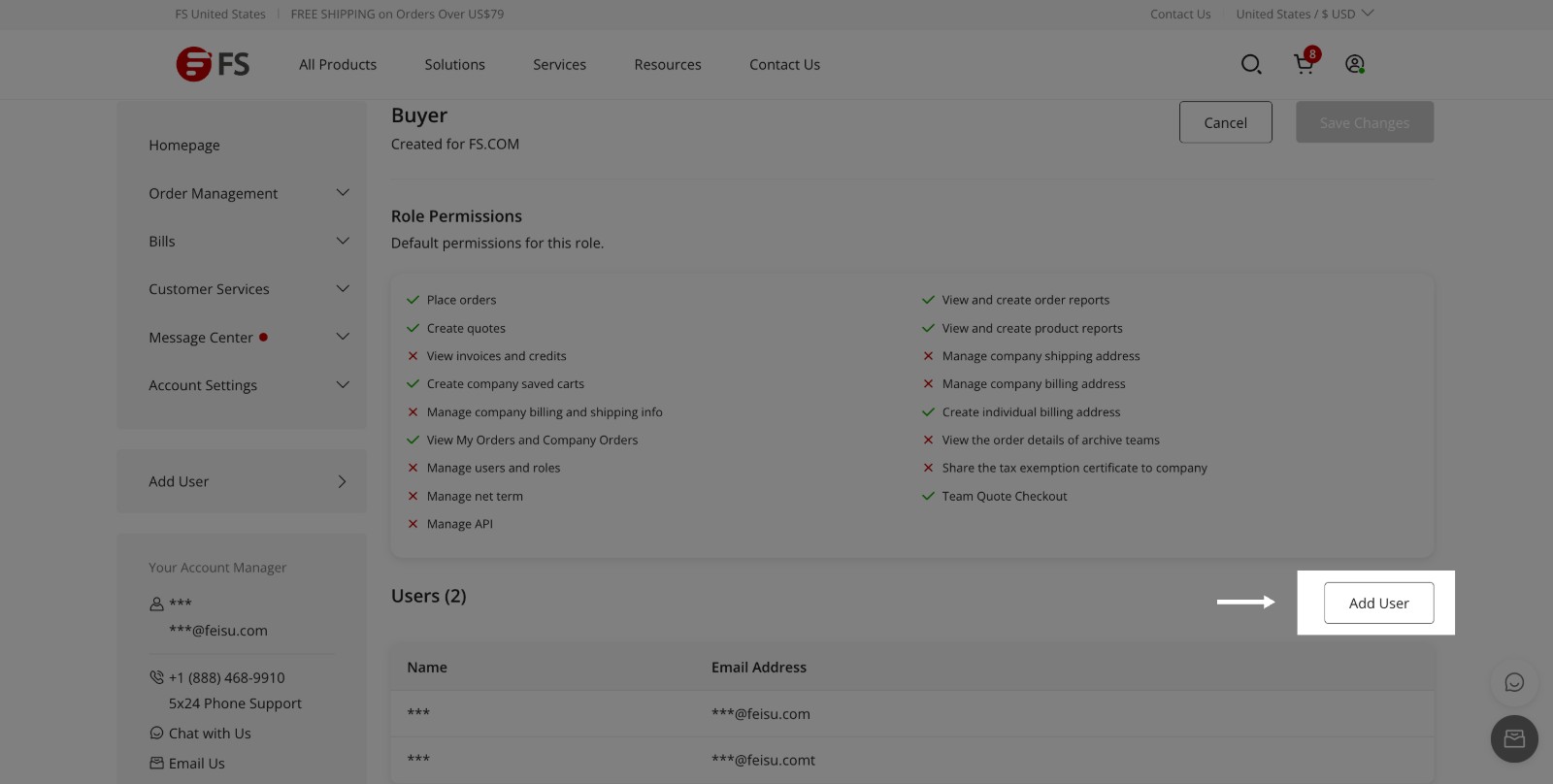
Add Members to a Role
本页导读
View Members
Edit Member Roles
Remove a Member
Manage Invitations
Manage Roles