
Manage Shared Business Resources
Last Updated: 2026-08-31 16:14:00
FS Business Accounts allow members to securely share and manage business resources across their organization, including orders, quotes, saved carts, addresses, and tax-exempt certificates.
This guide explains how to view, share, and manage these resources after joining a Business Account.
Before managing shared business resources, make sure that:
Note: The resources you can view or manage depend on thepermissions assigned to your role.
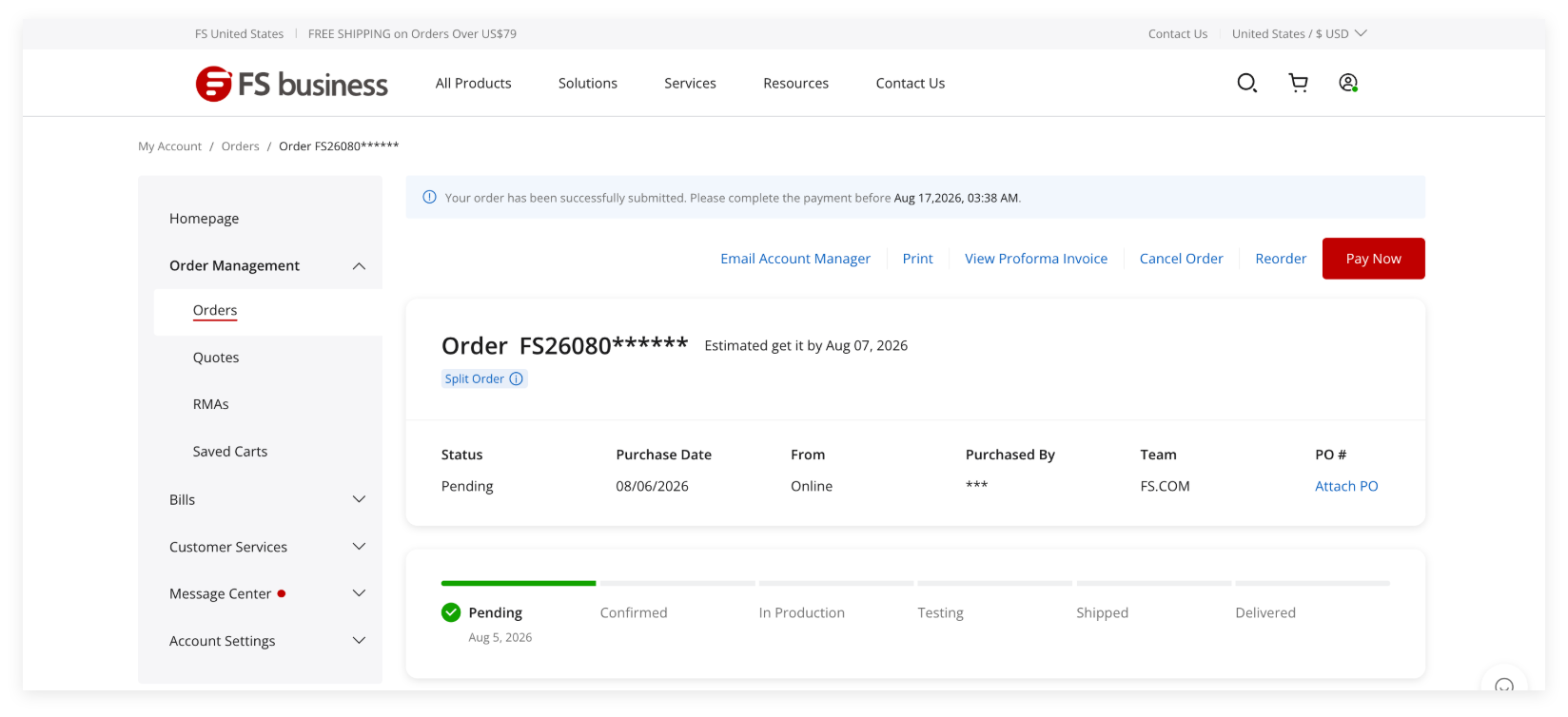
Orders are shared within your Business Account based on te.am membership. Members of the same team can view orders that have been shared with their team.
View Orders
Share an Existing Order
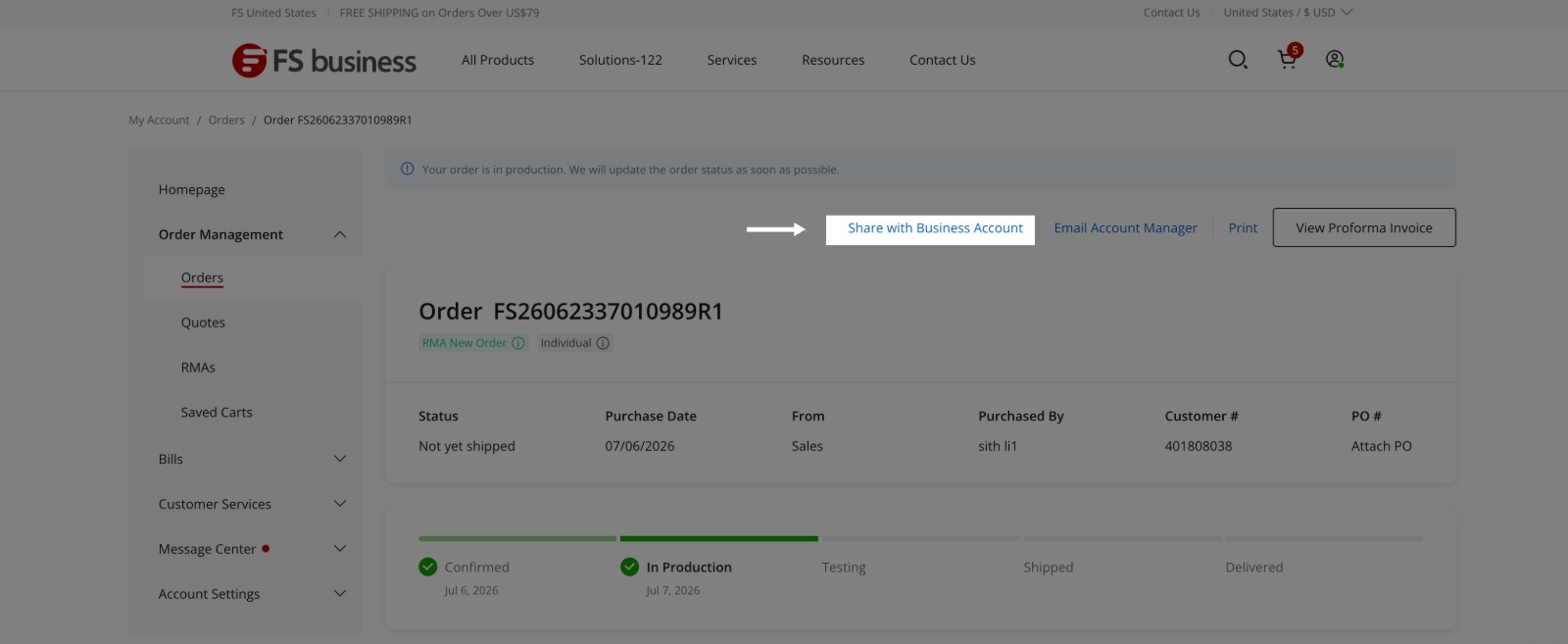
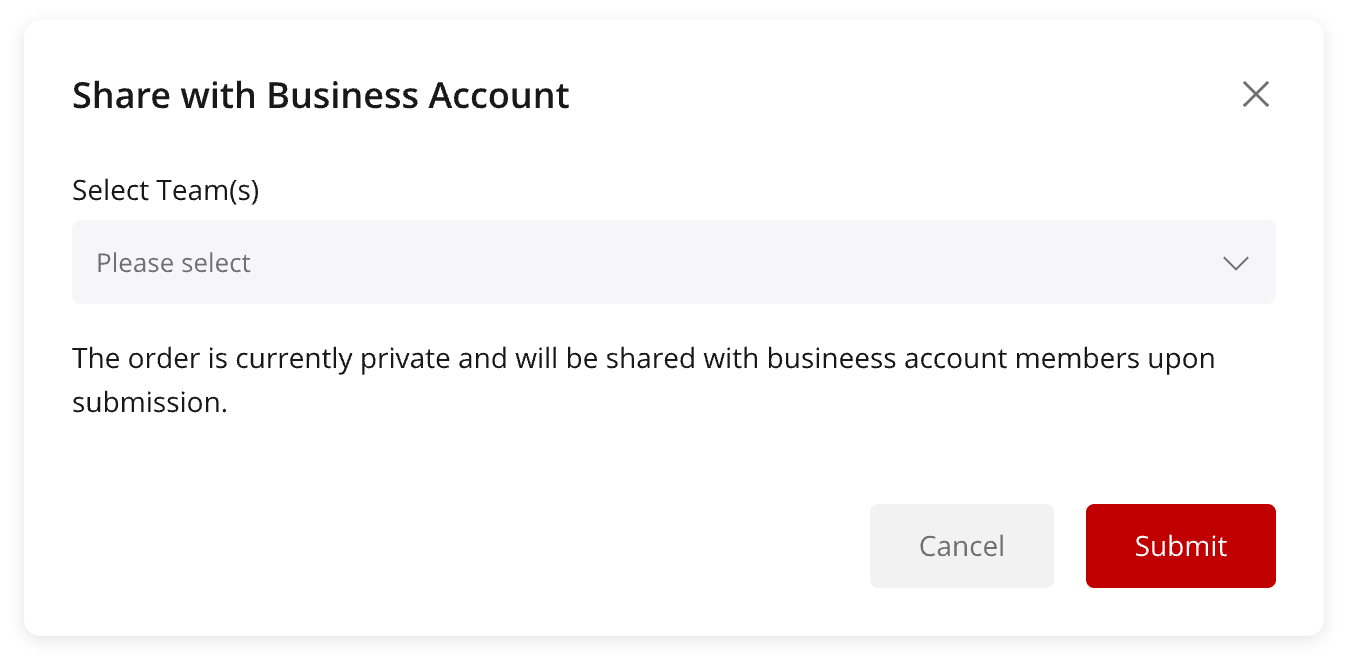
You can share a personal order with your Business Account.
After the order is shared, authorized members of tlhe selected team can view it.
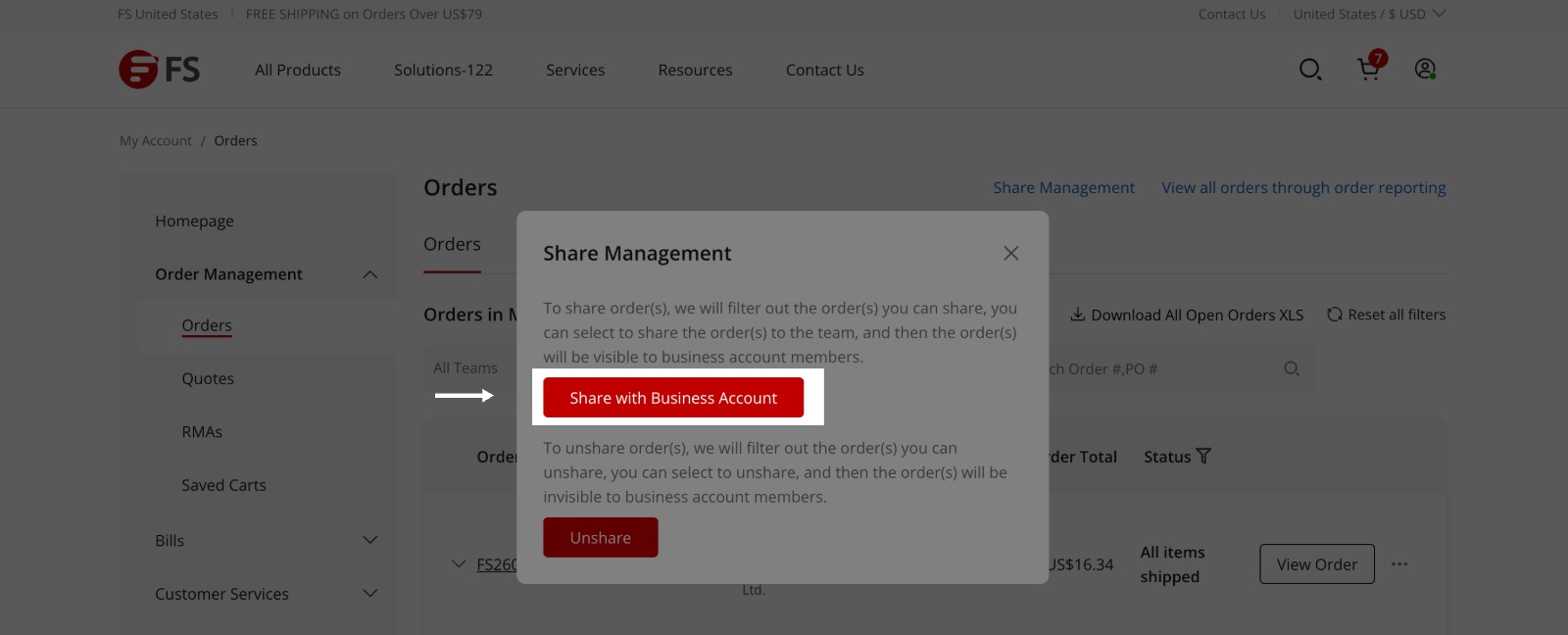
Share Multiple Personal Orders
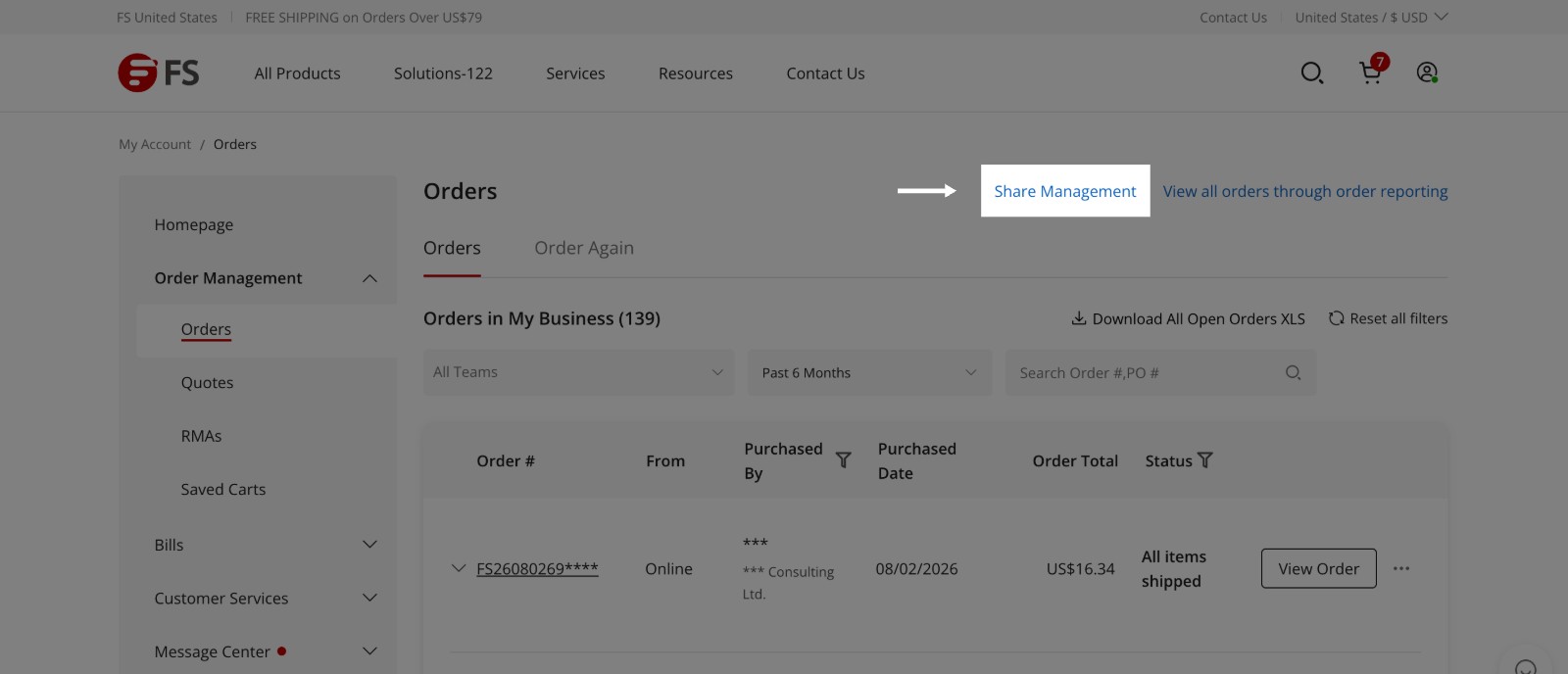
To share multiple orders at once:
Stop Sharing an Order
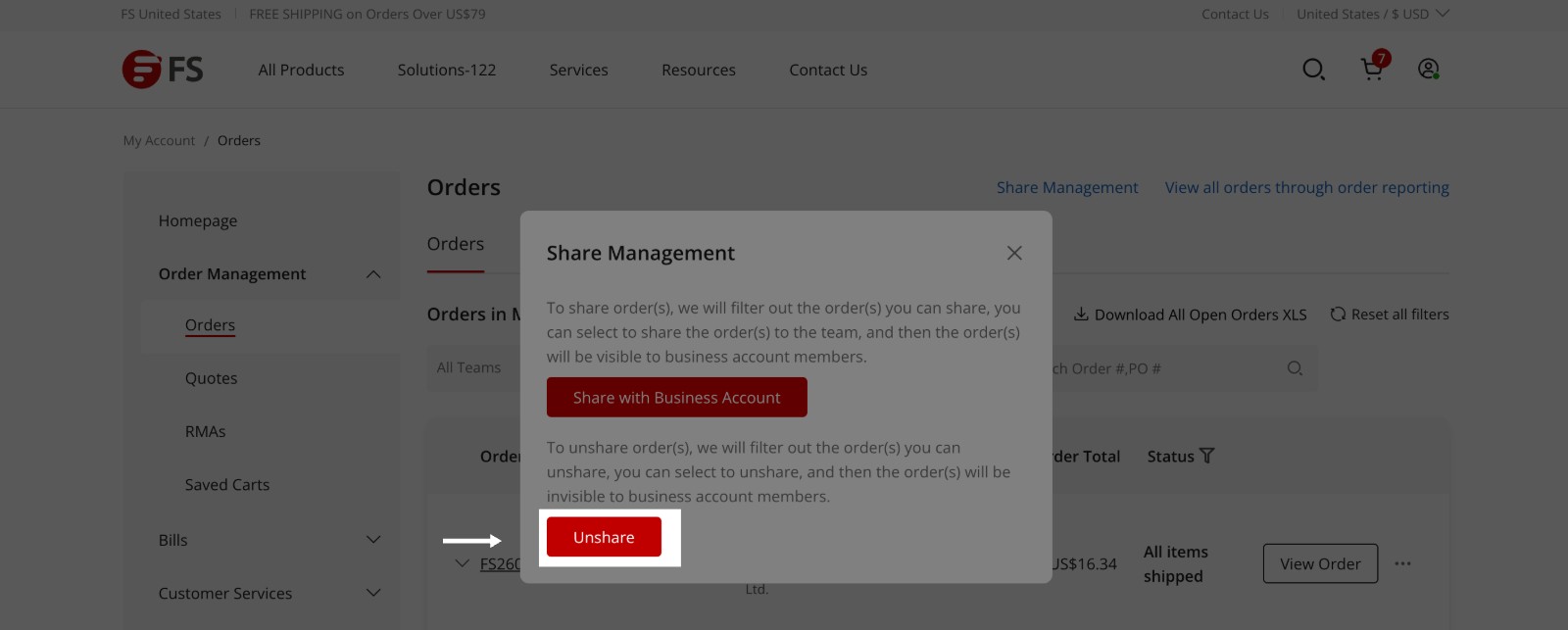
To remove a shared order from your Business Account:
The order will no longer be visible to other members and willI remain available only in your personal account.
View Quotes
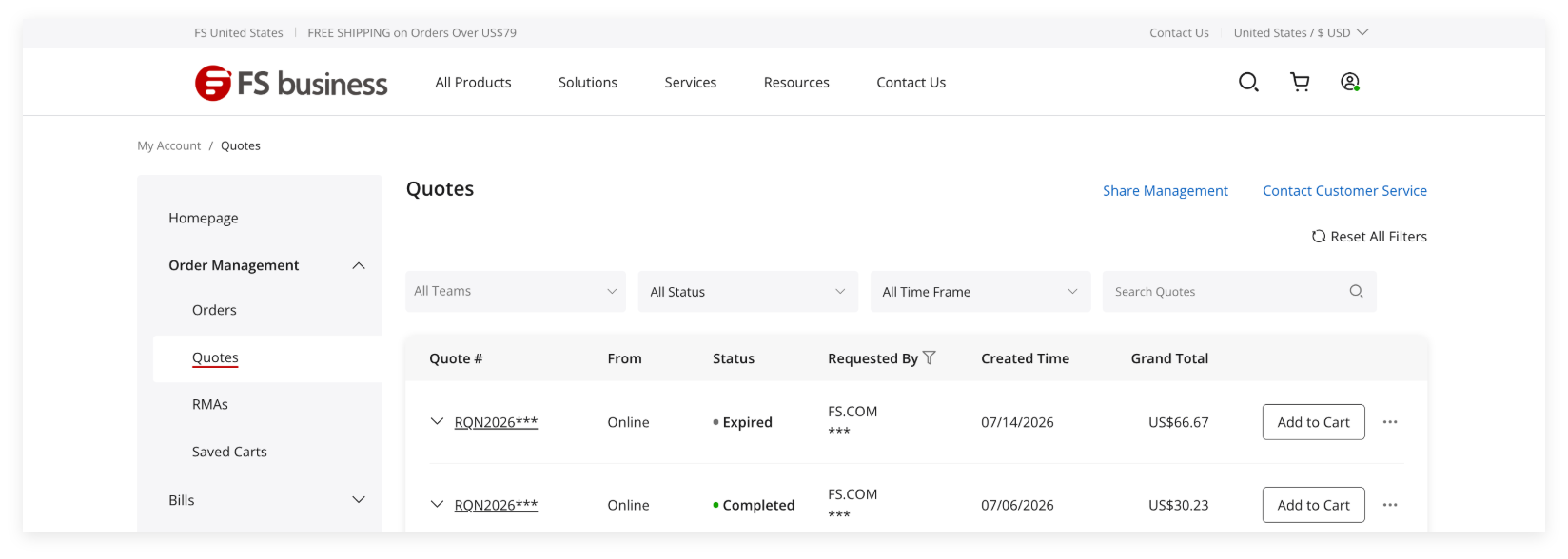
Go to Quotes and use the Team filter to view quotes shared vwith your team.
Share Quotes
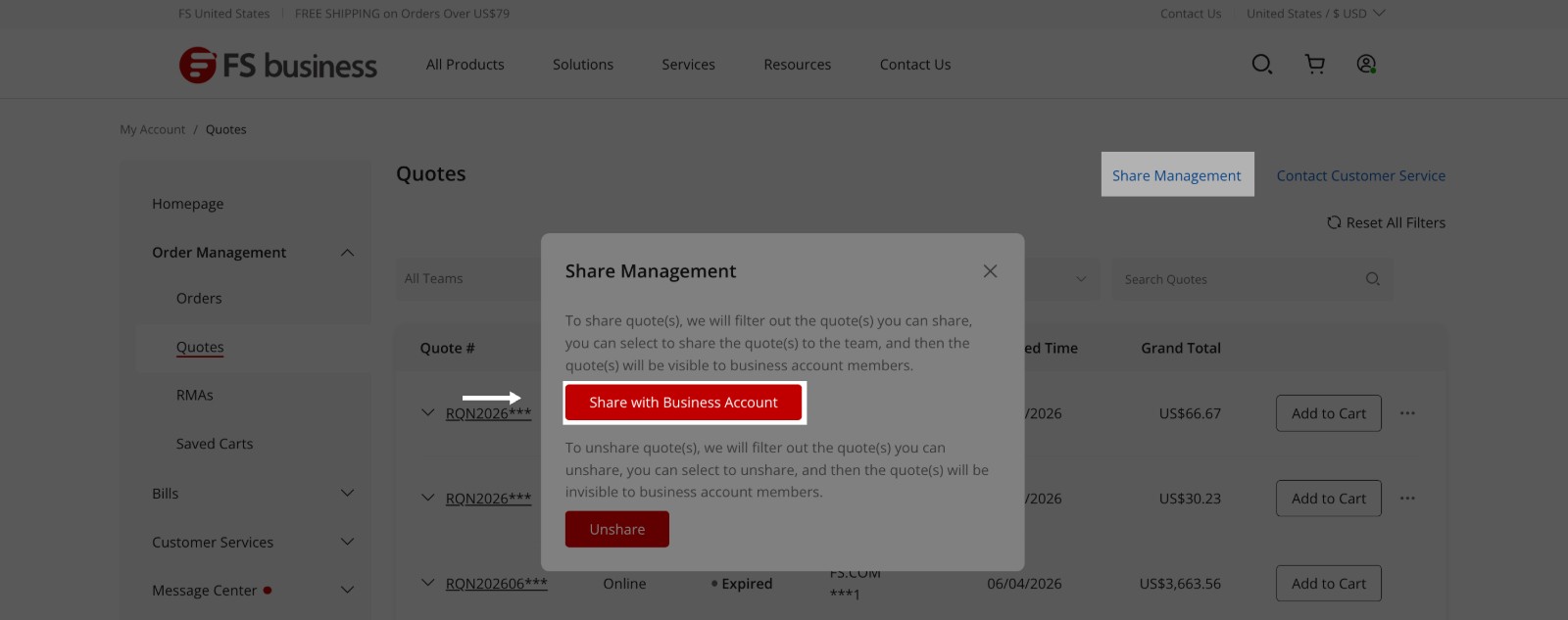
Historical personal quotes can be shared with your Business /Account using the same steps as sharing orders.
Quote Checkout
Saved Carts can be shared with your team to simplify future puirchases.
Create a Shared Saved Cart
If your account belongs to only one team, the Saved Cart isautomatically assigned to that team.
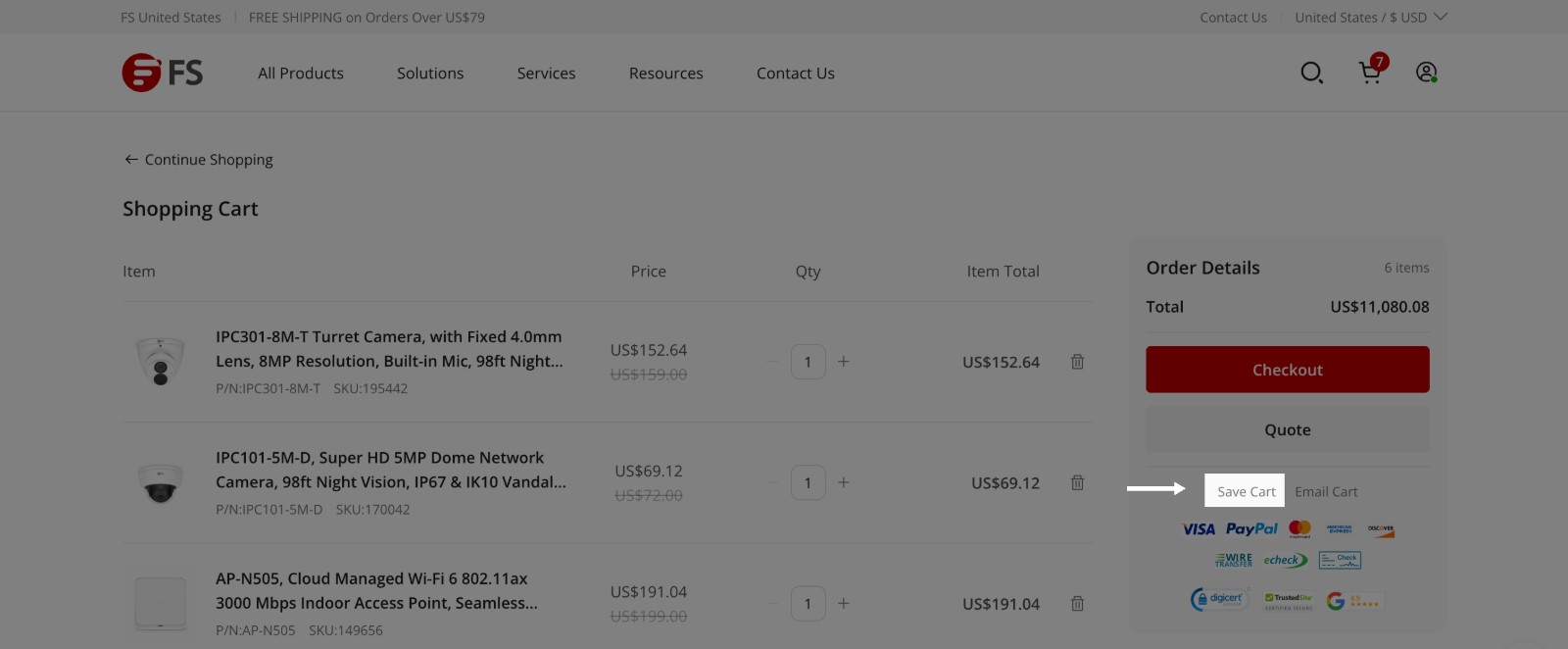
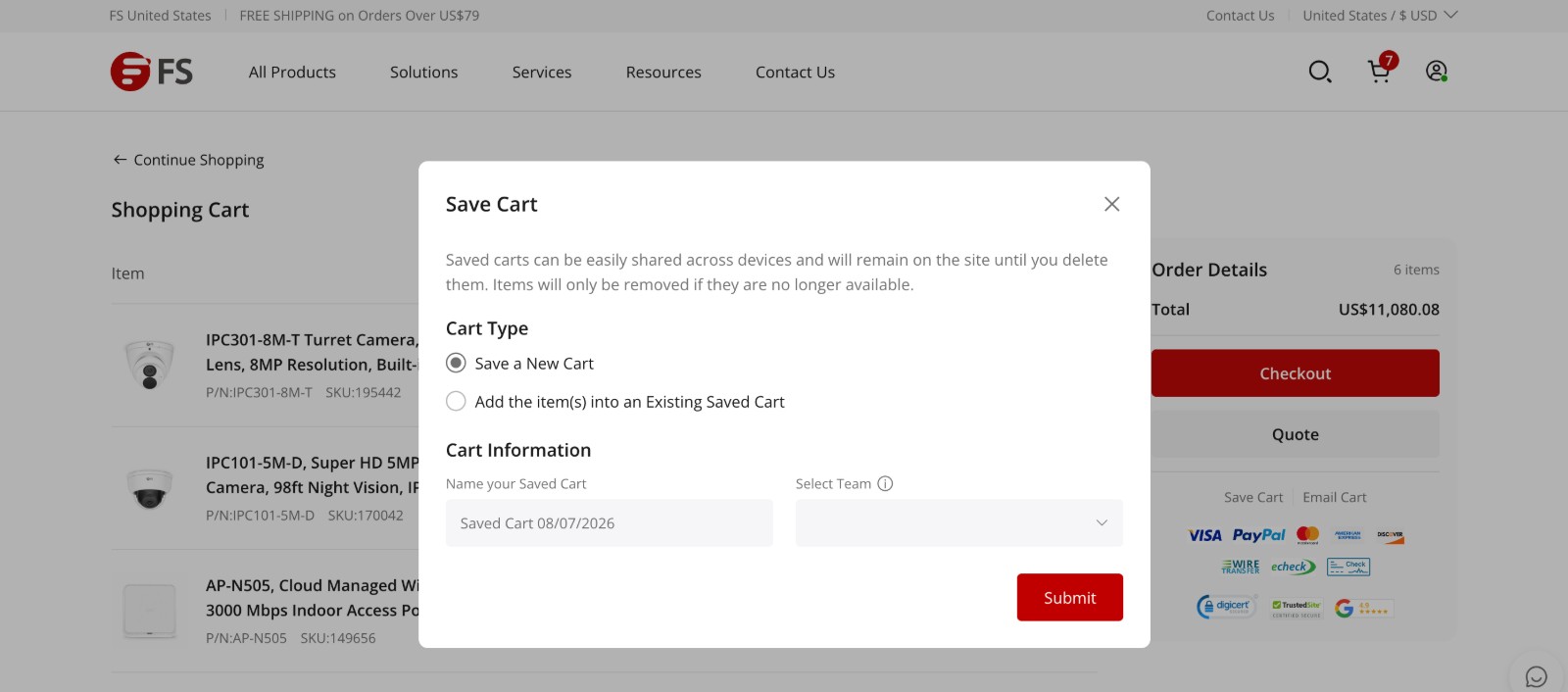
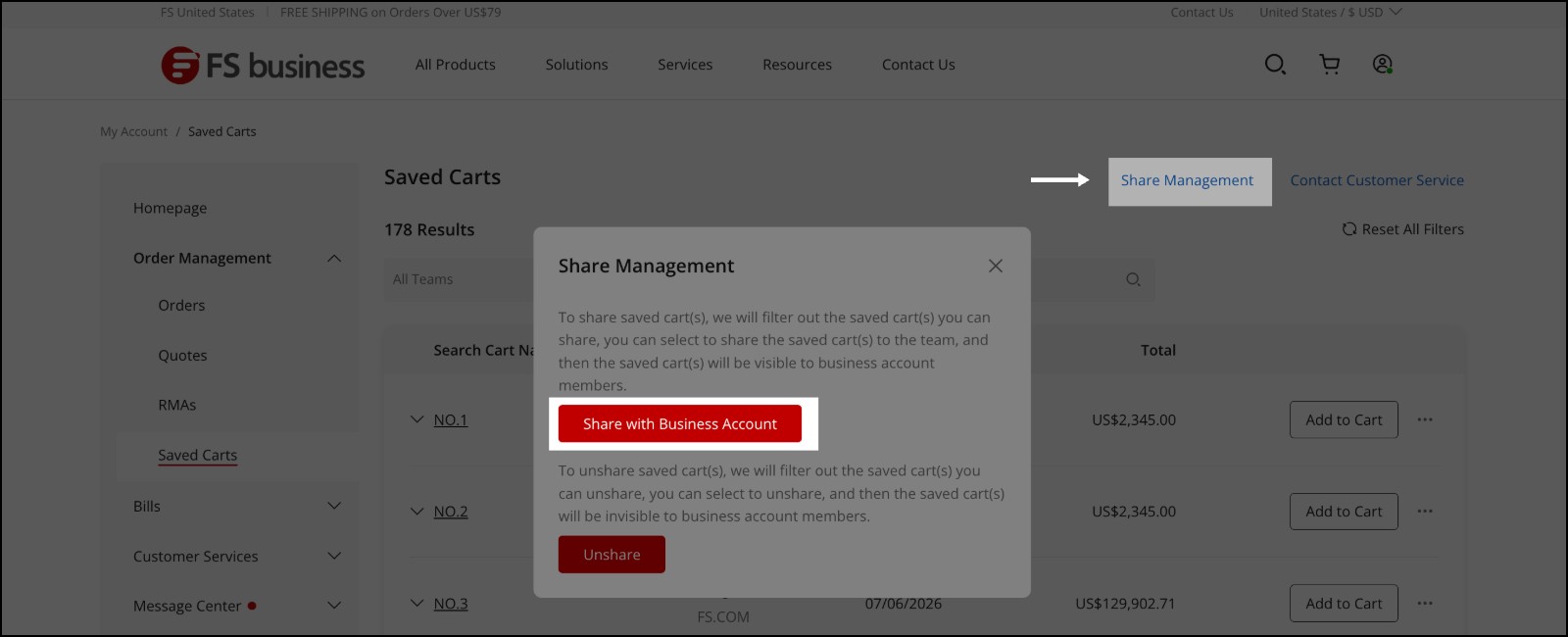
Share an Existing Saved Cart
Historical personal Saved Carts can also be shared with your Business Account using the same sharing process as historical orders.
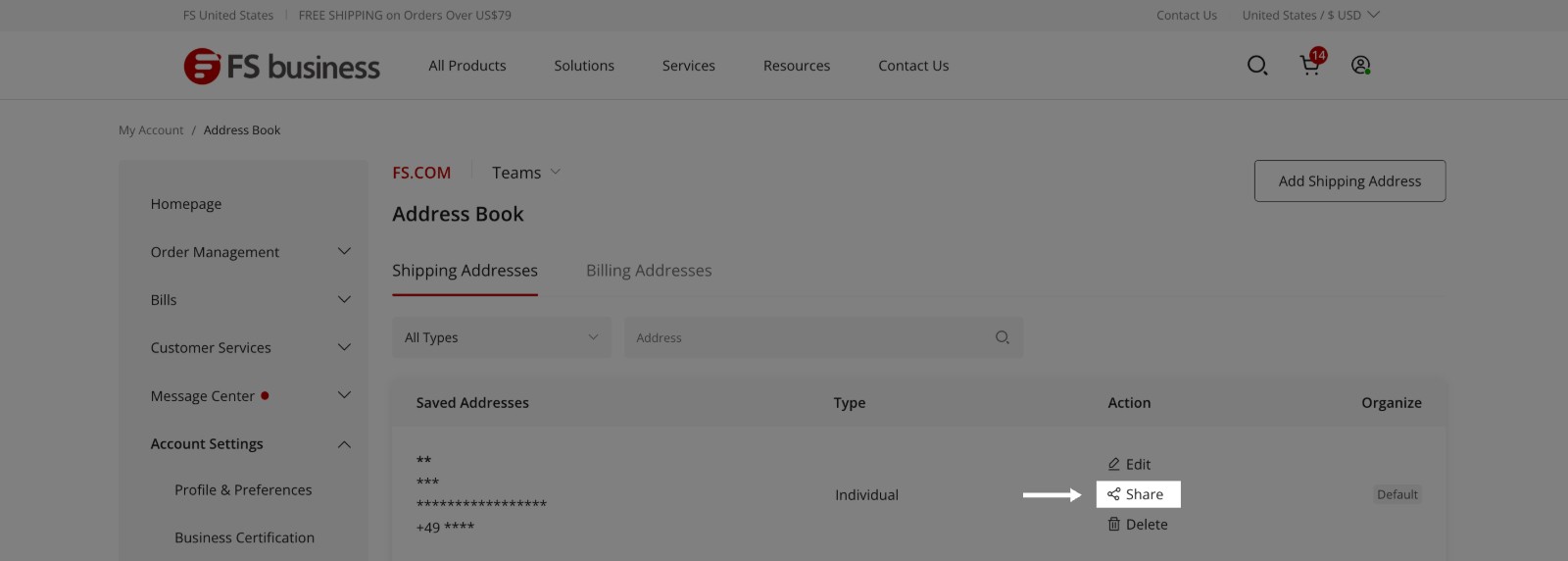
Business Accounts support shared Shipping Addresses and BillingAddresses.
View Shared Addresses
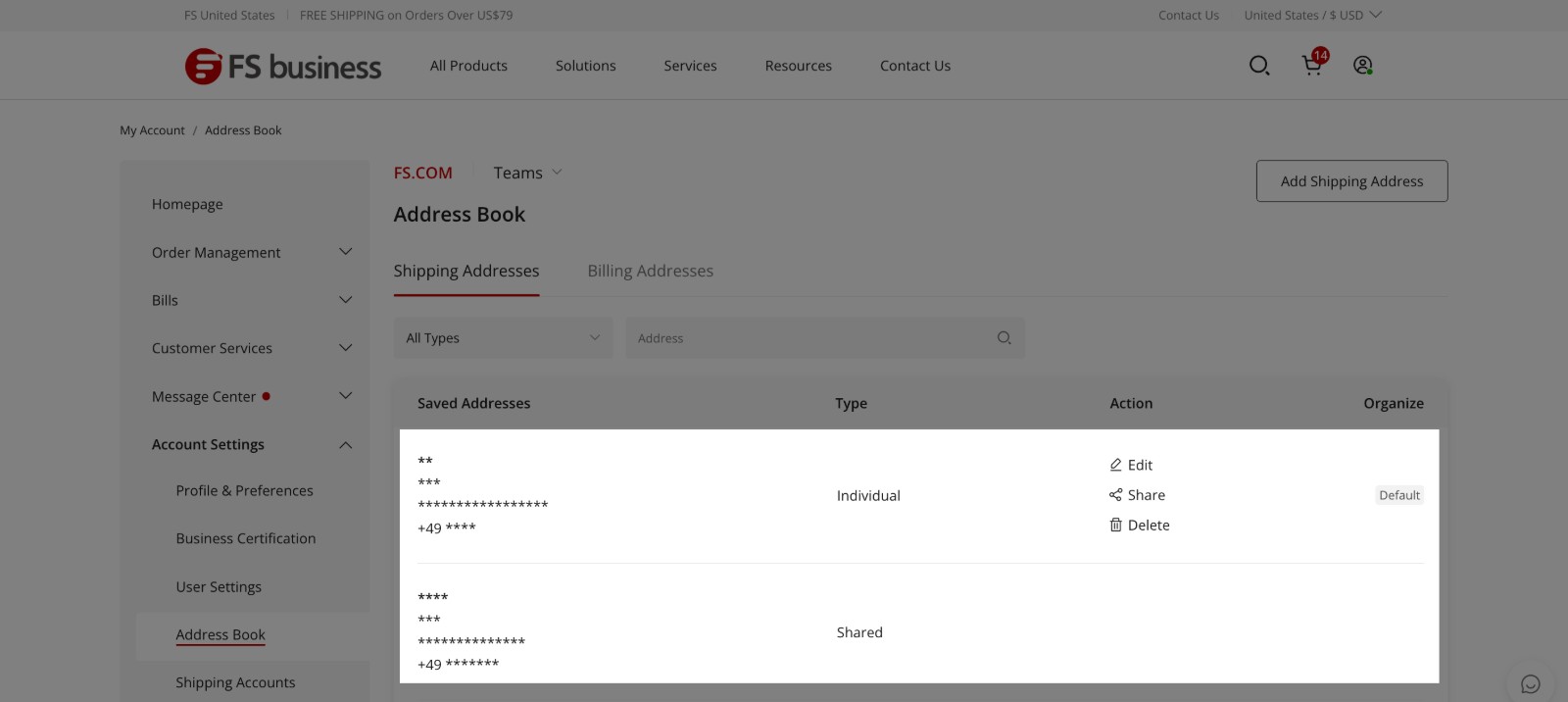
Share an Address
The selected teams can now use the shared addresSS.
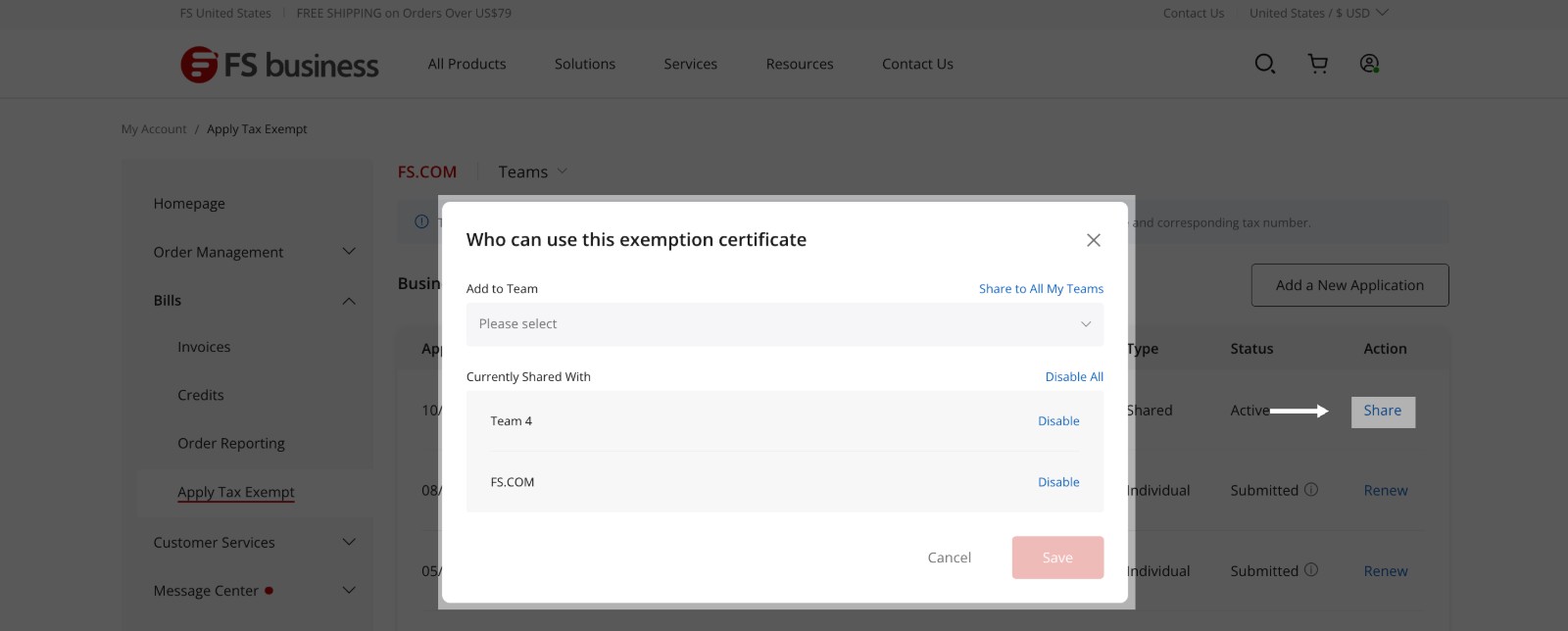
Tax-exempt certificates can be shared with other members of your Business Account. Only tax-exempt certificates with arActive status can be shared.
Share a Tax-Exempt Certificate
Note: Members of the selected team can use the shared tax-exempt certificate during checkout.
Invoices and after-sales records (including RMAs) automatically follow the sharing settings of their associated orders.
If an order is shared with a Business Account team:
Go to Invoices or After-Sales to view the records available to your account.
Notes
本页导读
Before You Begin
Manage Orders
Manage Quotes
Manage Saved Carts
Manage Shared Addresses
Manage Tax-Exempt
Invoices and After-Sales Records